
You are on lesson 7 of 8 in the course Path 3: Visual Presentation.
Module 3.3: Mobile Captioning: QR Codes and App-Free Access
Imagine someone sitting in the back row of your city council chamber. The in-room caption display is mounted near the front. They can't quite read it from where they're sitting—but they have a smartphone in their pocket.
With mobile captioning, that's all they need.
Mobile caption access lets any attendee view live captions on their personal device, right in the room or from home. No app download. No account creation. No special hardware. Just a quick scan of a QR code, and captions appear in their preferred language within seconds.
This article explains how mobile captioning works, how to deploy QR codes effectively, and how to make sure the people who need this access can actually find it.
Why mobile captioning matters
In-room caption displays are an important part of any accessible meeting setup. But they have real limitations. A monitor mounted at the front of a council chamber only serves people with a clear sightline. Attendees seated at odd angles, people with low vision who need larger text, and remote participants watching a live stream may not have access to the same display.
Mobile captioning fills those gaps. Because captions appear on each person's own device, viewers can increase text size to suit their needs, sit anywhere in the room without losing access, and follow along in their preferred language—all without asking anyone for help.
This is consistent with the ADA's requirement for auxiliary aids and services—communication access that genuinely works for each person, not just access that's technically present. Think of it like the curb cut effect: the ramp built for a wheelchair user also helps a parent with a stroller, a delivery worker with a cart, and a cyclist. Mobile captions were designed with accessibility in mind, but they serve everyone better.
Standards context
WCAG 2.1 Success Criterion 1.2.4 (Captions—Live) requires that live synchronized media include captions. This criterion is a Level AA requirement, which means it applies to government agencies under the ADA Title II rule.
Meeting the letter of this criterion means captions exist. Meeting the spirit of it means captions are findable and usable. Mobile caption access supports both. When an attendee can access captions on their own device without needing to request accommodations in advance, your agency is providing access that's both technically present and practically useful.
How QR code access works
A QR code (short for "quick response code") is a scannable image that links to a web address. When someone points their smartphone camera at it, the phone opens the linked page in a browser automatically—no app required.
For mobile captioning, each QR code links to a language-specific caption viewer that streams live captions from your meeting. Each language has its own QR code and its own URL. The process looks like this:
You display the QR code for the desired language on a screen, a sign, or both.
An attendee opens their phone camera and points it at the code.
The phone recognizes the code and prompts them to open the link.
The caption viewer opens in their browser.
Captions appear in real time, synchronized with the meeting.
The whole process typically takes under 30 seconds. Because the viewer runs in a standard mobile browser, it works on virtually any smartphone or tablet made in the last several years. There's nothing to install and no account to create.
QR code best practices
The technology behind QR codes is reliable. Whether people actually use them depends on how well you deploy them.
Display the QR code where people can actually see it
The most common mistake is placing a QR code where people see it too late—after they've already sat down, started a conversation, or given up looking. Put the code somewhere attendees encounter it naturally as they arrive. Good locations include a sign at the building entrance or meeting room door, a slide on the main screen before the meeting starts, printed handouts at the sign-in table, the public agenda both printed and online, and your agency's meeting information page.
If you're streaming the meeting online, display the QR code in the video frame or include the direct caption URL in the video description. Remote viewers can click the link directly rather than scanning a code.
Make the QR code large enough to scan from a distance
A QR code printed at business card size works fine for a document someone holds in their hand. It won't work for a room sign people scan from several feet away. For printed signs, aim for at least 4 inches square. For projected slides, the code should fill a significant portion of the slide so it remains scannable from the back of the room.
Test your QR codes at realistic distances before your first meeting. Scan from the back row, from the sides, and from any seat that's not directly in front of the display.
Include a text URL as a backup
Not everyone is comfortable with QR codes, and some older devices may not scan them reliably. Always include the direct web address alongside the QR code. Keep the URL short and easy to type. For example: captions.yourcity.gov or yourcity.gov/captions. If your URL is long, consider setting up a simple redirect.
Add a plain-language explanation
Don't assume people know what a QR code is. Add a brief label that tells them exactly what they'll get. Something like: "Scan for live captions — open your phone's camera, point it at this code, and tap the link." This removes hesitation for people who haven't used QR codes before, which matters especially for older adults.
Promoting caption availability
Making captions available is only half the work. People need to know they exist. Many people who would benefit—including people who are hard of hearing, people with auditory processing differences, and non-English speakers—often don't ask for accommodations because they don't know what's available.
Before the meeting: Include a brief accessibility note on every public meeting notice. For example: "Live captions and real-time language translations are available for this meeting. Scan the QR code at the entrance or visit [URL] to access captions on your device." Make this a standard part of your agenda template so it appears automatically.
During the meeting: Your chair or a staff member can announce caption availability at the start, just as they might announce where to find the restrooms. A statement like "Live captions are available on your phone—scan the QR code on the screen" takes five seconds and lets everyone know the option exists.
On your website: If your agency posts a meeting calendar, include a caption access note on each event page with a direct link to the caption viewer. People can find this information before they arrive, which matters most for attendees who plan ahead.
Real-world application: a city clerk's workflow
A city clerk preparing for a planning commission meeting adds the caption URL to the online agenda and includes scan instructions in the meeting notice. They print two signs—one for the building entrance and one for the meeting room—and prepare a pre-meeting slide with the QR code to display on the main screen.
When the meeting starts, the chair announces caption availability. Three people scan the QR code: one person is hard of hearing and prefers reading along on their own device, one is a Spanish speaker who uses the Spanish-language URL shared in the agenda, and one is a hearing person who finds it easier to follow a complex land-use discussion with captions.
None of them needed to ask for help. That's what proactive accessibility looks like—and the preparation took about ten minutes.
MediaScribe integration
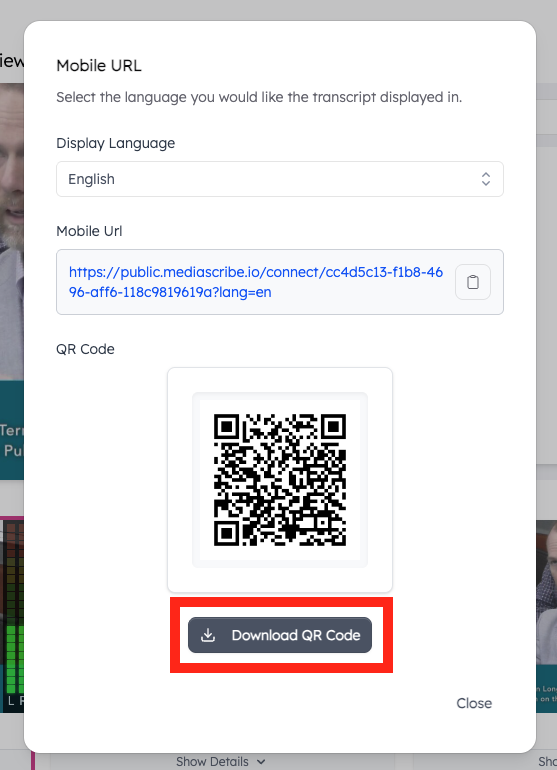
MediaScribe generates a unique QR code and mobile URL for each active session. When your system is running, click Mobile URL in the left sidebar to open the mobile access panel.
Getting the QR code: The panel displays the live QR code along with the direct Mobile URL, which you can copy to your clipboard. Click Download QR Code to save the image for printed signs, handouts, or projected slides.
Language and QR codes: Use the Display Language dropdown to select which language the QR code links to. Changing the language generates a new QR code for that language's caption stream. To offer multiple languages, download a separate QR code for each one and label them clearly so attendees know which to scan.
Branding your mobile viewer: To customize the logo that appears in the mobile caption viewer, go to Settings → Mobile Branding, then edit an existing preset or create a new one.
Summary
Mobile captioning lets attendees view live captions on their personal devices by scanning a QR code—no app or account required.
Each QR code links to a language-specific caption stream; offer multiple QR codes when serving multilingual audiences.
Place QR codes where attendees encounter them on arrival: building entrance, pre-meeting slide, printed handouts, online agenda, and your agency's website.
Always include a plain-language explanation and a backup text URL alongside every QR code.
Promote caption availability proactively in meeting notices, agendas, and verbal announcements—don't wait for people to ask.
Offering both in-room displays and mobile access provides more complete coverage for the full range of people at your meetings.
Test QR codes at realistic scanning distances before your first live meeting.