
You are on lesson 6 of 11 in the course Path 1: Captions.
Module 1.2: Custom Vocabularies: Getting Names Right
Why vocabularies matter
Automated speech recognition handles everyday words well, but struggles with uncommon terms specific to your community. Council member names like "Aakanksha Chatterjee," local street names like "Wojciechowski Avenue," specialized terms like "stormwater bioswales," and abbreviations like "ARPA" often appear incorrectly. "Chatterjee" might become "chattery." "Wojciechowski" could appear as "voyage chef ski."
Custom vocabularies solve this problem by teaching MediaScribe the specific words, names, and phrases used in your meetings.
What vocabularies improve
Focus your vocabulary on terms that sound distinct but aren't in the system's standard dictionary:
People's names are the most common use case. Council members, department heads, and frequent speakers deserve accurate representation. "Siobhan O'Malley" shouldn't appear as "she vaughn oh malley."
Local place names include streets, neighborhoods, parks, and buildings that help residents understand what's being discussed.
Technical and specialized terms vary by department. Planning commissions use "conditional use permits." Public works discusses "bioretention systems." Budget meetings reference "millage rates."
Acronyms and abbreviations like "FEMA," "CARES Act," or "RFP" often appear as individual letters or nonsense words without vocabulary entries.
Grant programs and funding sources need exact official names for the record.
Vocabularies improve recognition of specific words but don't fix audio quality problems or grammatical errors. They work best when words are pronounced clearly and consistently.
Building an effective vocabulary
Start small and expand based on actual caption errors you observe.
Gather terms from real meetings
Watch caption output and note which terms consistently appear incorrectly. Keep a running list during meetings. When "sanitation" captions as "san station" repeatedly, that's a vocabulary candidate.
Review existing documents for terms to include:
Council or board member names from official rosters
Department head names and frequent public commenters
Street names from your jurisdiction's maps
Park and facility names
Current project names from capital improvement plans
Grant program names and technical terms from ordinances
Format entries correctly
MediaScribe vocabularies use two columns: Content and Sounds Like.
The Content column shows exactly how you want the term to appear. Use proper capitalization and spacing. Enter "Aakanksha Chatterjee," not "aakanksha chatterjee."
The Sounds Like column is optional but powerful. Use it when spelling doesn't match pronunciation. For "Siobhan," enter "shiv-awn" or "shuh-von." For "Schuylkill," enter "skoo-kill." Write how it sounds in plain English.
You can enter multiple sounds-like variations for the same term. If "Wojciechowski" gets pronounced as both "voy-cheh-kow-ski" and "woy-jeh-kow-ski," enter both.
Organize by meeting type
Create preset-specific vocabularies:
City Council preset: Council member names, city departments, major street names, and current project names
Planning Commission preset: Planning terms, applicant names, property locations, zoning classifications
Board of Education preset: Board member names, school names, curriculum terms
Public Works preset: Engineering terms, contractor names, infrastructure project names
Setting up vocabularies in MediaScribe
Vocabularies are configured at the preset level.
Access and add entries
Navigate to Settings > Presets
Click Edit on the preset you want to configure
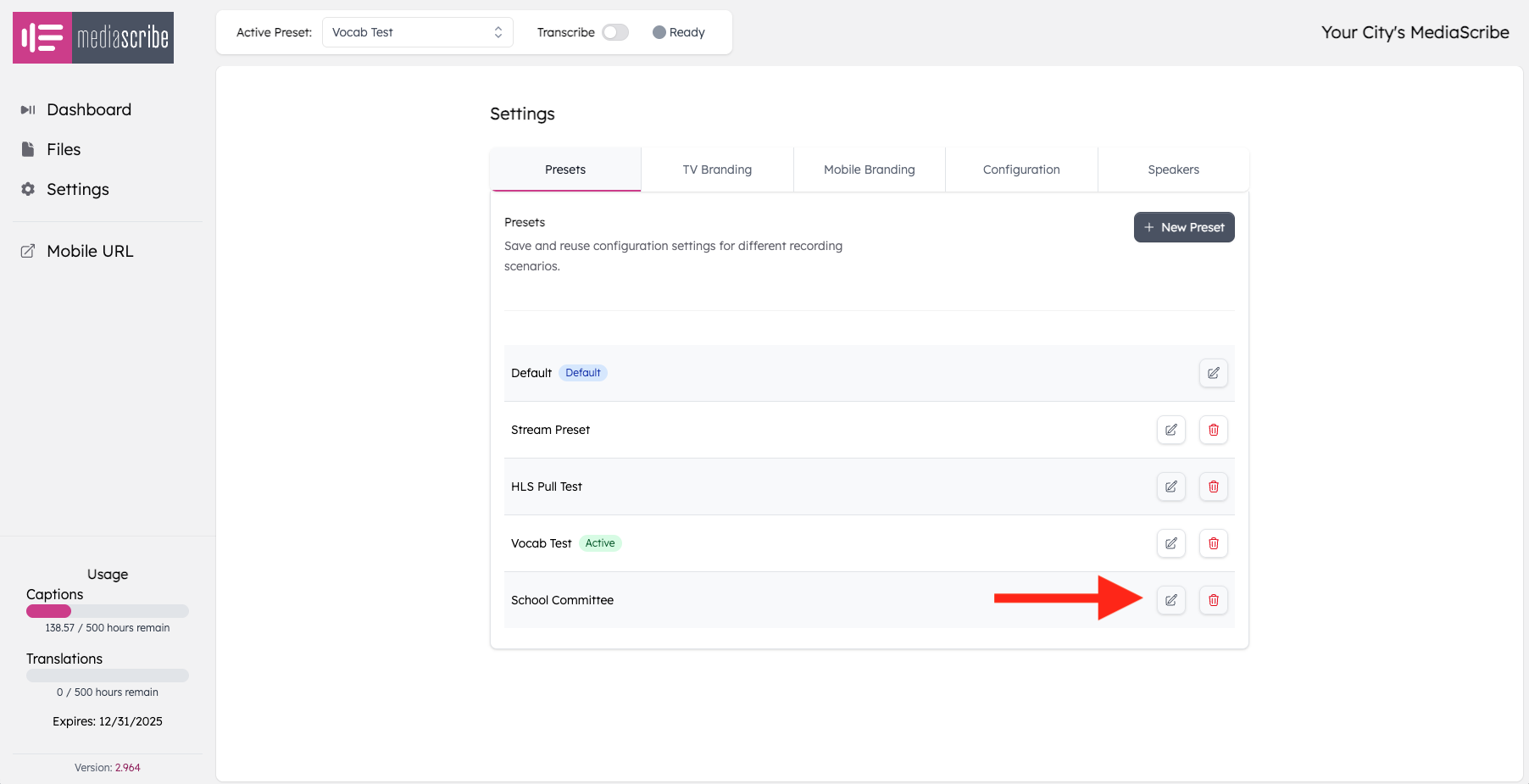
Select the Vocabulary tab
Type how you want the word displayed in the Content field
Optionally, type phonetic spellings in the Sounds Like field
Click the Plus button to add the entry
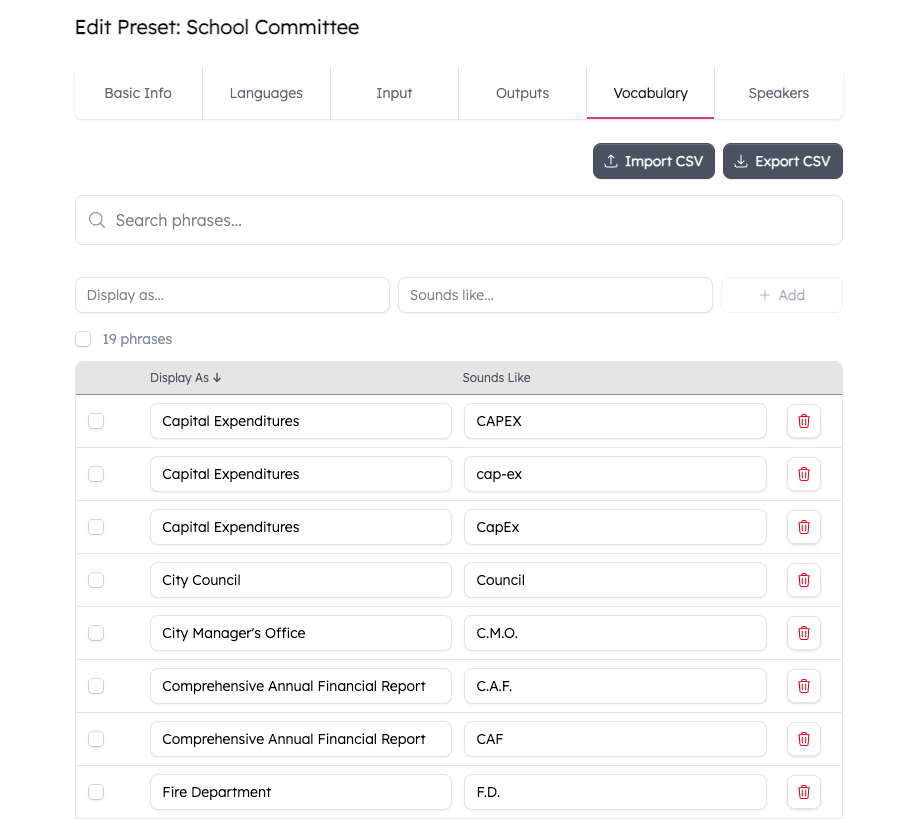
You can add up to 1,000 words or phrases per vocabulary. To add multiple pronunciation variations, type an additional sounds-like entry and click Plus again.
Click the Trash icon to remove an entry and all its sounds-like variations. Click Save when finished.
CSV import/export
For larger vocabularies, use CSV import and export.
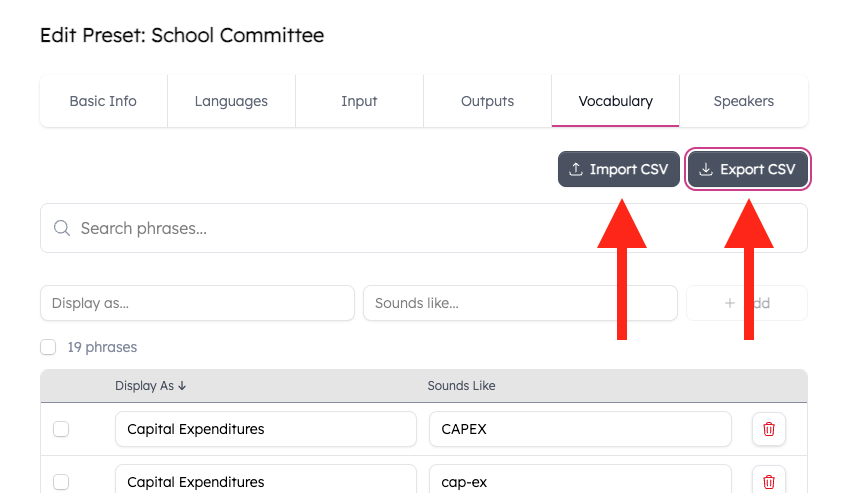
Click Export CSV to download your vocabulary as a CSV file. This creates a backup and lets you edit in a spreadsheet.
The CSV has two columns: Content and Sounds Like. For multiple pronunciations, add multiple rows with the same Content value but different Sounds Like entries.
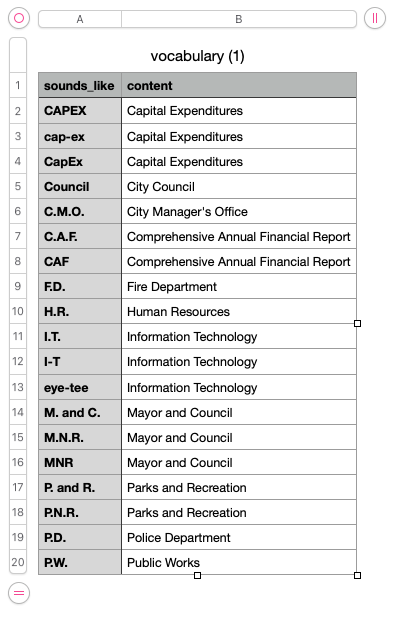
Click Import CSV to upload a vocabulary file. Import replaces your current vocabulary, so export first to preserve existing entries.
Example vocabulary template
Here's a sample vocabulary showing proper formatting for different term types:
Content | Sounds Like |
|---|---|
Aakanksha Chatterjee | ah-kahn-shah chat-er-jee |
Wojciechowski Avenue | voy-cheh-kow-ski |
Wojciechowski Avenue | woy-jeh-kow-ski |
ARPA | |
ARPA | ar-pah |
Community Development Block Grant | |
Schuylkill River | skoo-kill |
bioswales | |
bioswales | bio-swales |
planned unit development | |
millage rate | |
Siobhan O'Malley | shiv-awn oh-malley |
Siobhan O'Malley | shuh-von oh-malley |
Notice how some entries have no sounds-like value (ARPA, bioswales, planned unit development). This is fine when the correct spelling is phonetically similar to how it sounds. The content term itself helps MediaScribe recognize it.
Some entries have multiple sounds-like variations (Wojciechowski Avenue, ARPA, Siobhan O'Malley). This increases recognition accuracy when different speakers pronounce terms differently.
Maintaining your vocabulary
Schedule quarterly reviews to:
Add names of new officials or department heads
Remove terms for people who have left or completed projects
Add technical terms from recent meetings
Update pronunciations for terms still appearing incorrectly
Keep exported CSV files as backups before making major changes.
Testing vocabulary effectiveness
Monitor your next few meetings after adding terms. If a term still appears incorrectly, check your entry:
Is the Content spelling exactly what you want?
Does the Sounds Like entry match actual pronunciation?
Have you included all common pronunciation variations?
Listen carefully to how words are actually pronounced in meetings, not how you think they should sound.
Vocabularies improve automated caption accuracy but don't eliminate the need for human review. Always review captions for accuracy before publishing final transcripts.
Common vocabulary scenarios
New city council: Three new council members joined, and their names appear incorrectly in captions. Add each name to your city council preset vocabulary with sounds-like entries for non-standard pronunciations.
Major infrastructure project: A multi-year project name comes up in every meeting. Add the complete project name, contractor names, and street names in the project area to relevant presets.
Grant program discussions: Federal grant acronyms caption as random words or individual letters. Add both full grant program names and acronyms with sounds-like entries for acronyms pronounced as words versus spelled out.
Technical planning terms: Specialized terms like "conditional use permit" sometimes appear incorrectly. Add planning-specific terms to your planning commission preset for consistent formatting.
Best practices
Start with names first. Personal names show the most noticeable improvement and matter most to the people being captioned.
Add terms based on actual errors. Watch real caption output instead of anticipating problems. This prevents vocabulary bloat.
Keep pronunciations simple. Write sounds-like entries in plain English. "shiv-awn" works better than formal phonetic notation.
Use preset-specific vocabularies. Targeted vocabularies work better than one giant list for all meetings.
Update quarterly. Regular reviews work for most organizations. More frequent updates are needed during staff turnover or major projects.
Share across your organization. Make sure everyone knows where to find vocabulary files and how to suggest additions.
MediaScribe integration
MediaScribe's vocabulary feature integrates directly into the preset configuration system, allowing you to create meeting-specific vocabularies that automatically load when you select that preset. The vocabulary interface supports up to 1,000 terms per preset and includes CSV import/export for managing large vocabularies or sharing them across multiple presets. Vocabularies work with both live captioning and post-production transcripts, improving accuracy across your entire accessibility workflow.
To configure vocabularies for your presets, navigate to Settings > Presets, select the preset you want to edit, and choose the Vocabulary tab.
What's next
With vocabularies configured, your captions will be more accurate for community-specific terms. Next steps: configure speaker profiles, review caption styling options, and set up preset configurations that include appropriate vocabularies for each meeting type.